How to Connect Your Shopify Store to CXWizard
Step-by-step guide to create a Shopify legacy custom app, configure Admin API scopes, install it, and paste your credentials into CXWizard’s Shopify integration.
How to Connect Your Shopify Store to CXWizard
Connecting Shopify gives your AI agent access to tools to get information about your products, orders, fulfillments, inventory and store policies in order to assist customers. You will create a legacy custom app in the Shopify admin, grant only the API scopes CXWizard needs, install the app to get an Admin API access token, then paste that token and your store domain into CXWizard.
You need staff permissions that allow managing apps and API credentials in your Shopify admin.
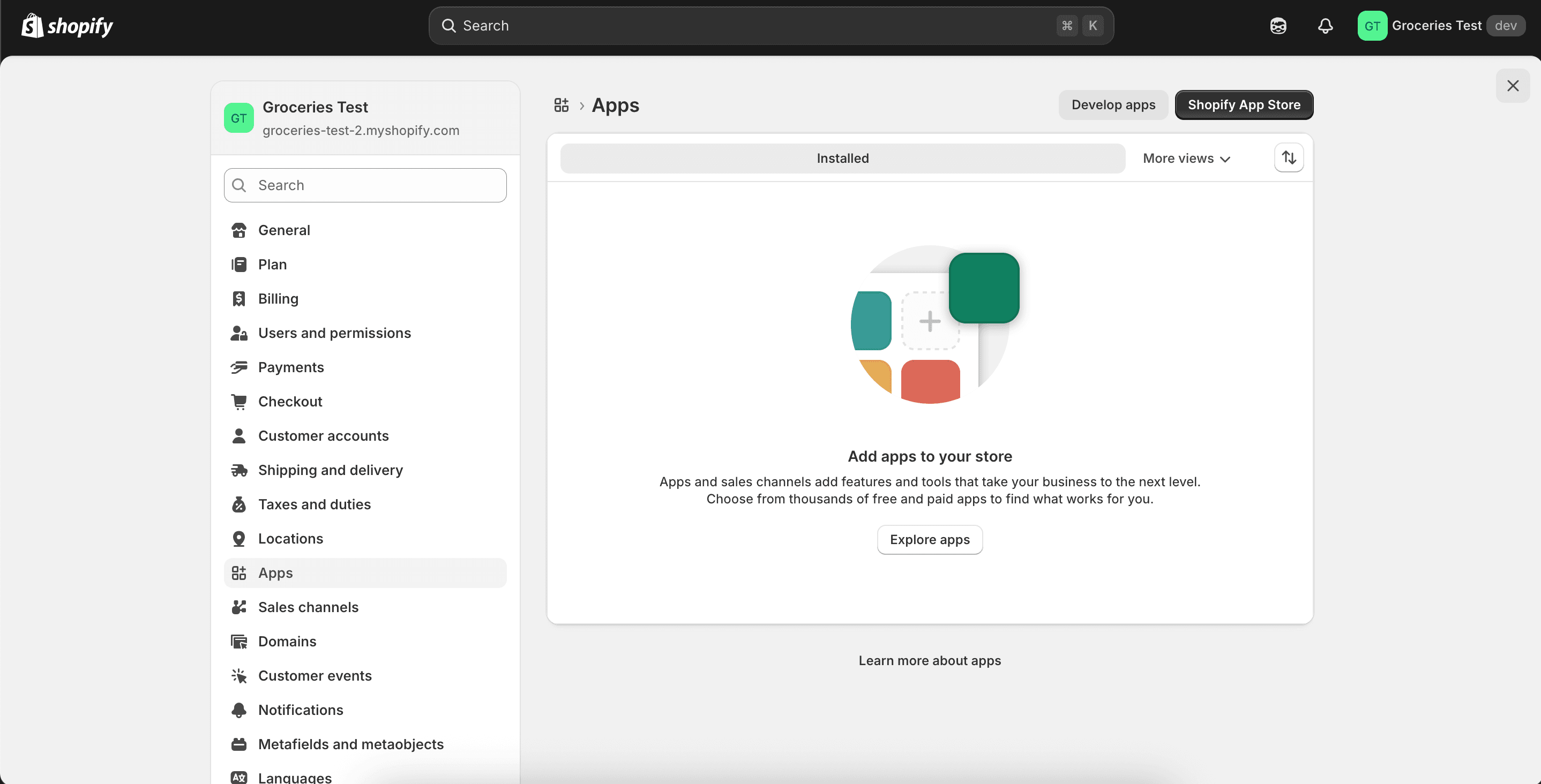
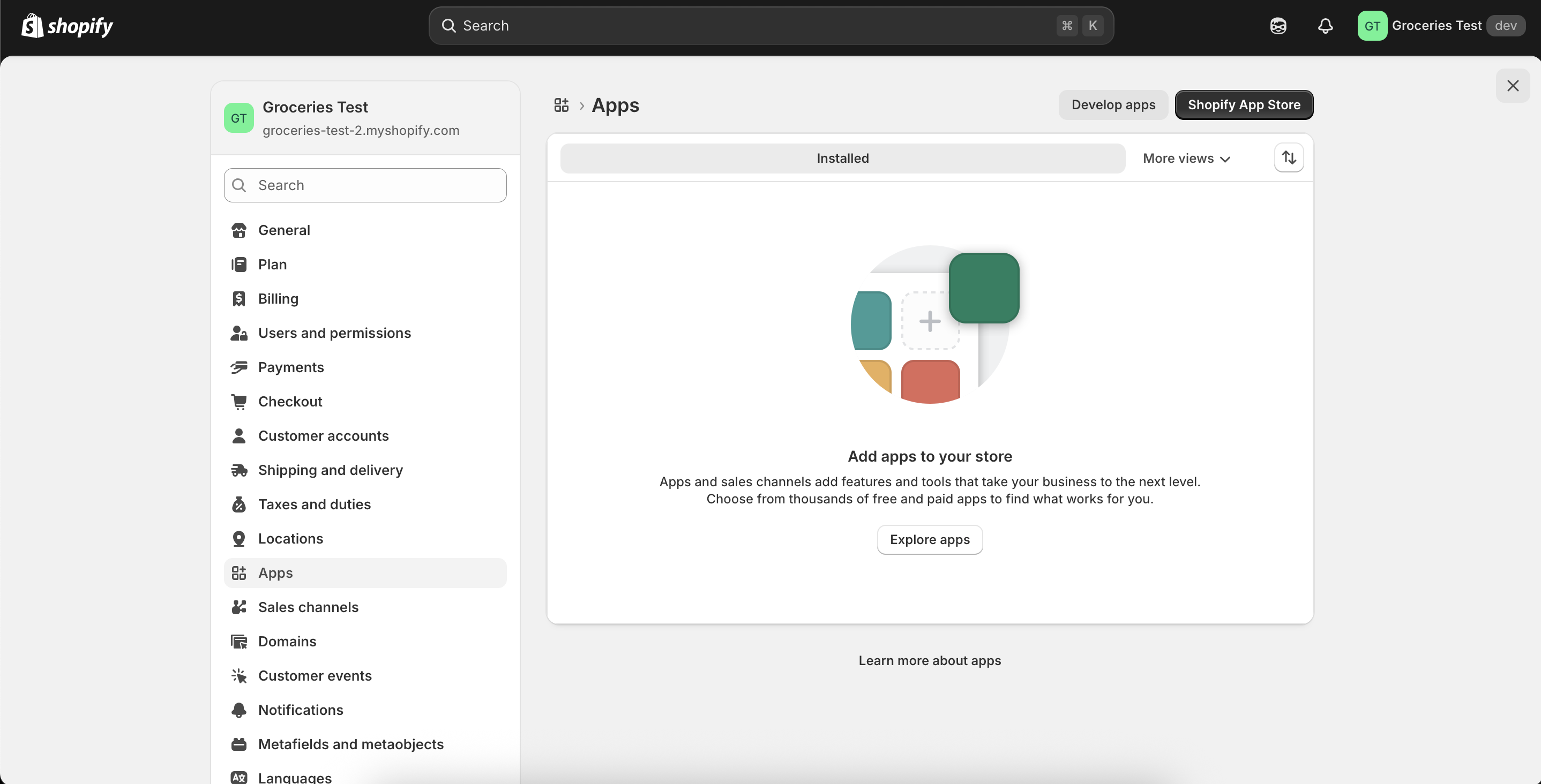
1. Open Apps and Develop apps
In Shopify admin, go to Settings → Apps → Develop apps.
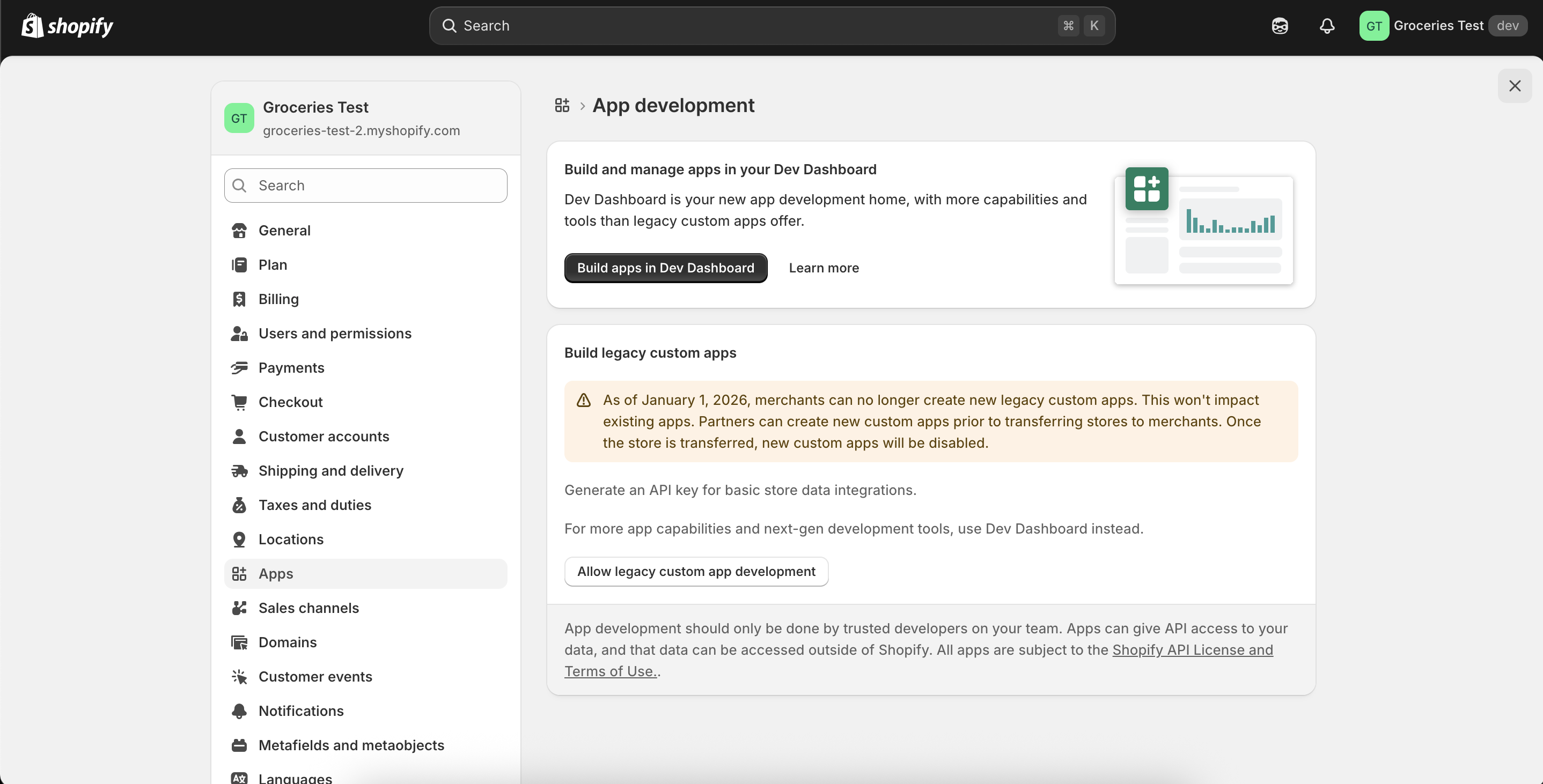
2. Allow legacy custom app development
On the Develop apps screen, click Allow legacy custom app development.
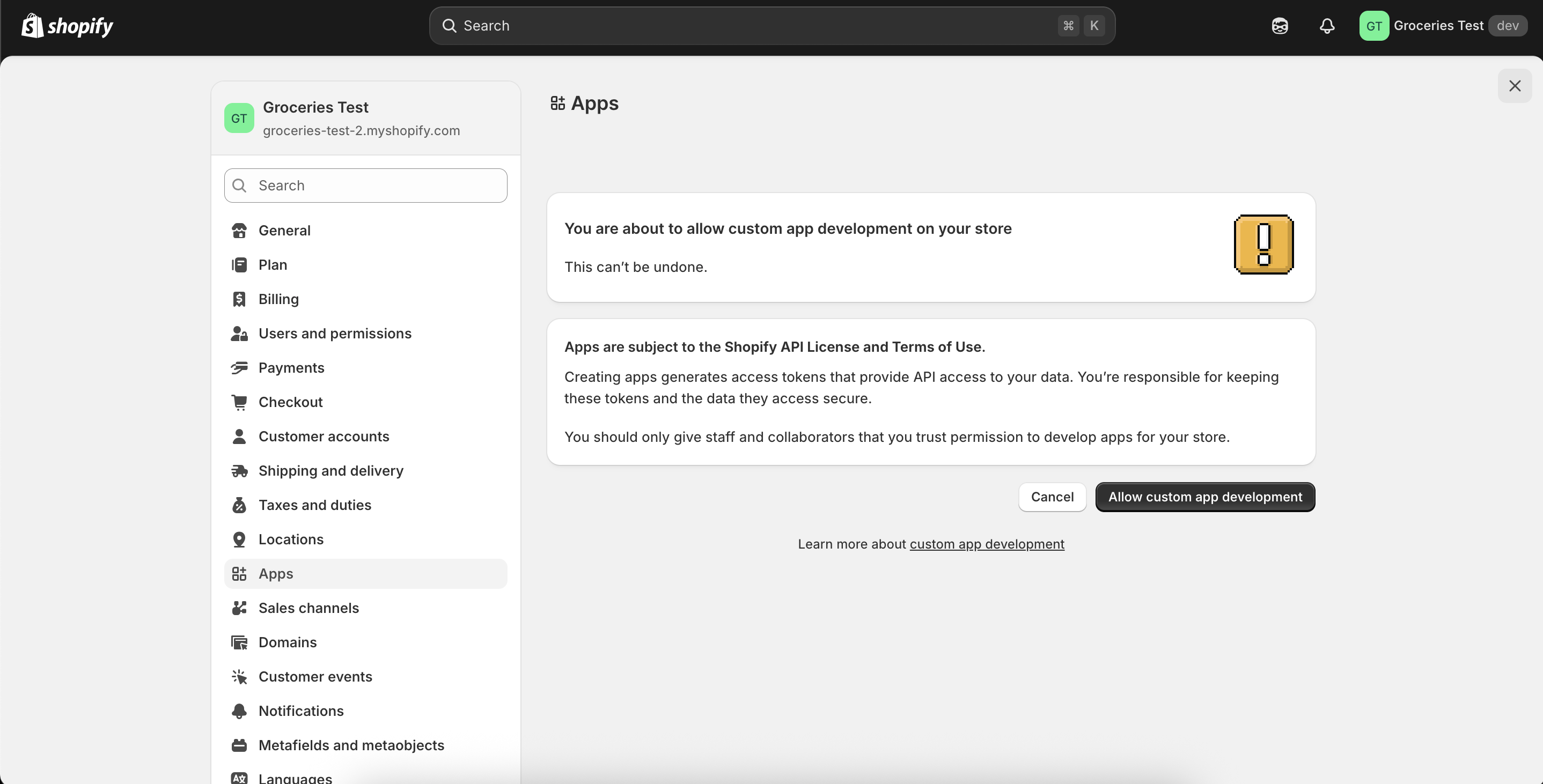
3. Accept the warning
Read Shopify’s warning about custom app development. If you agree, click Allow custom app development to continue.
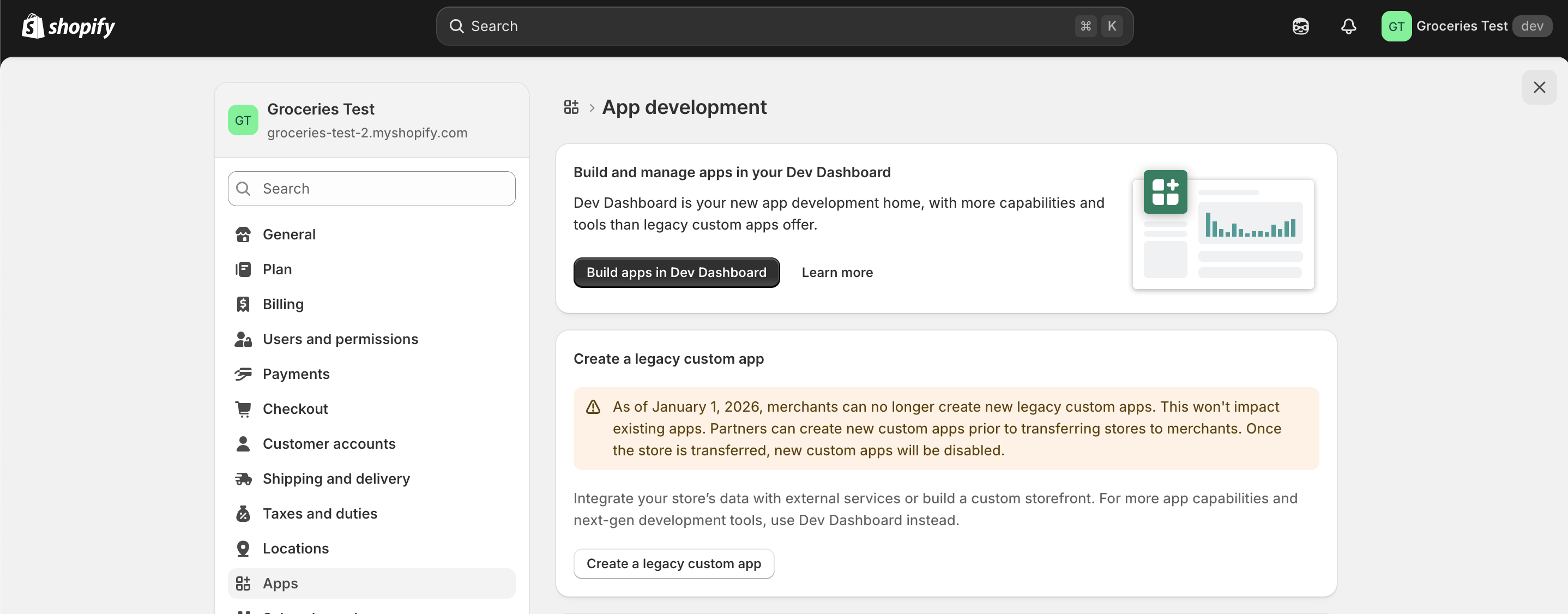
4. Create a legacy custom app
Click Create a legacy custom app to start the app setup.
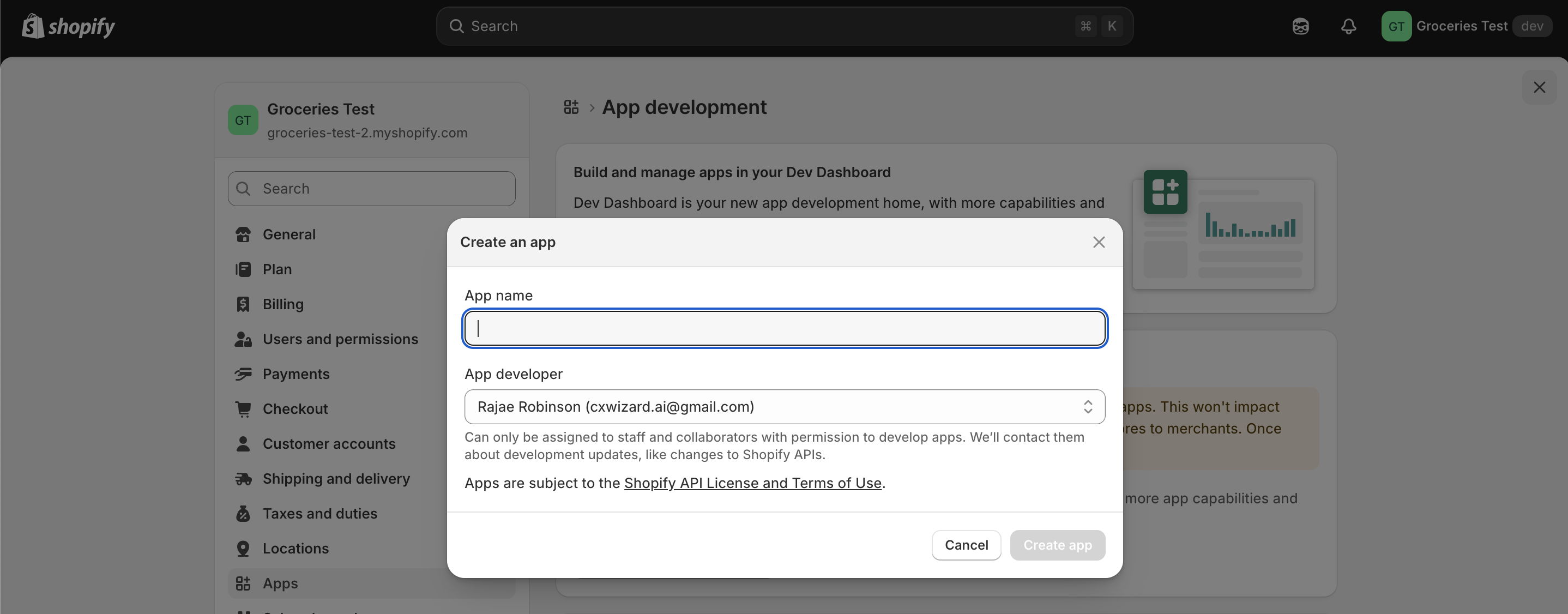
5. Name the app
Enter an app name. For example: cxwizard-integration. Save or continue as prompted.
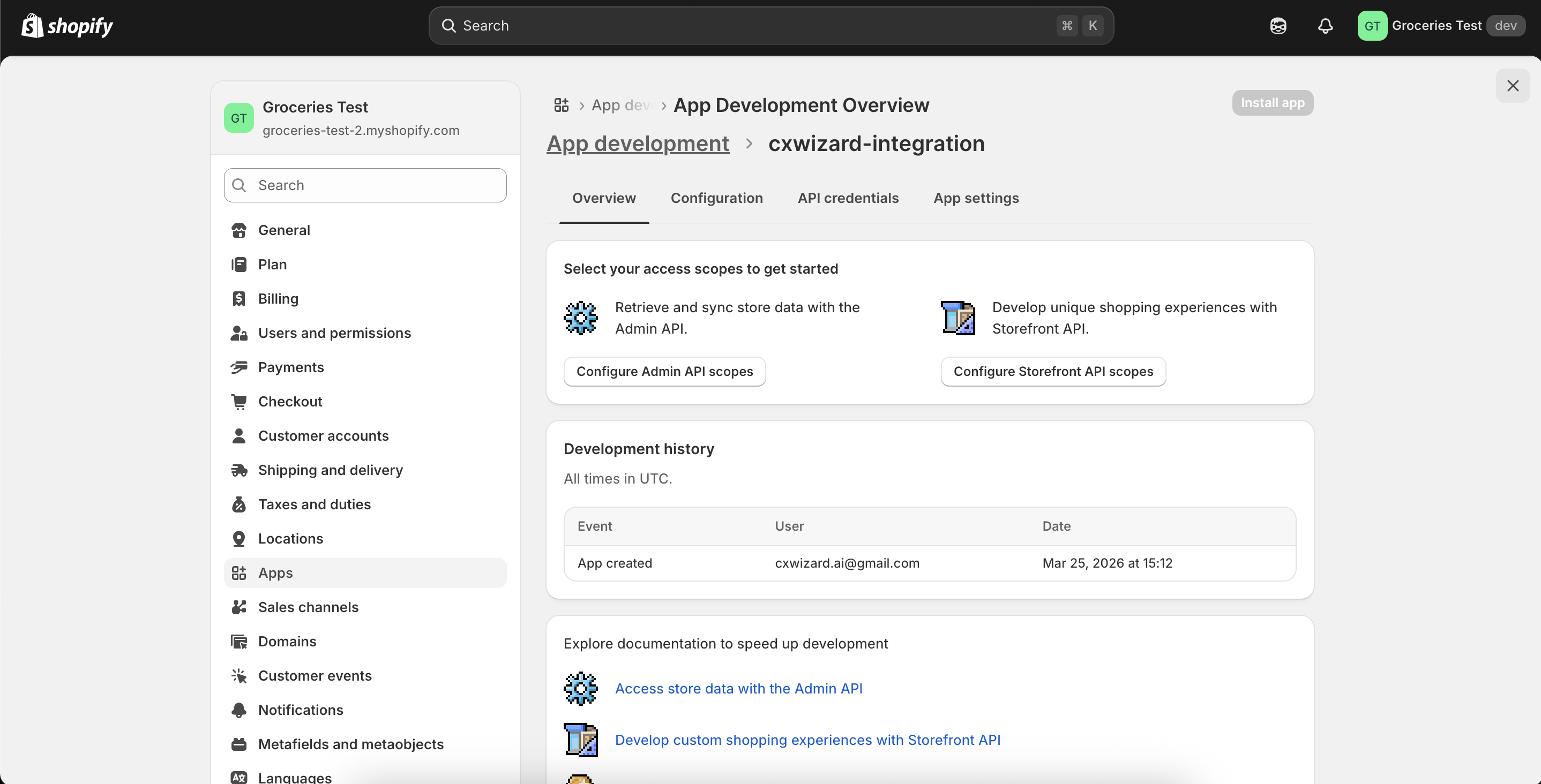
6. Configure Admin API scopes
Click Configure Admin API scopes so you can choose which data the app may read.
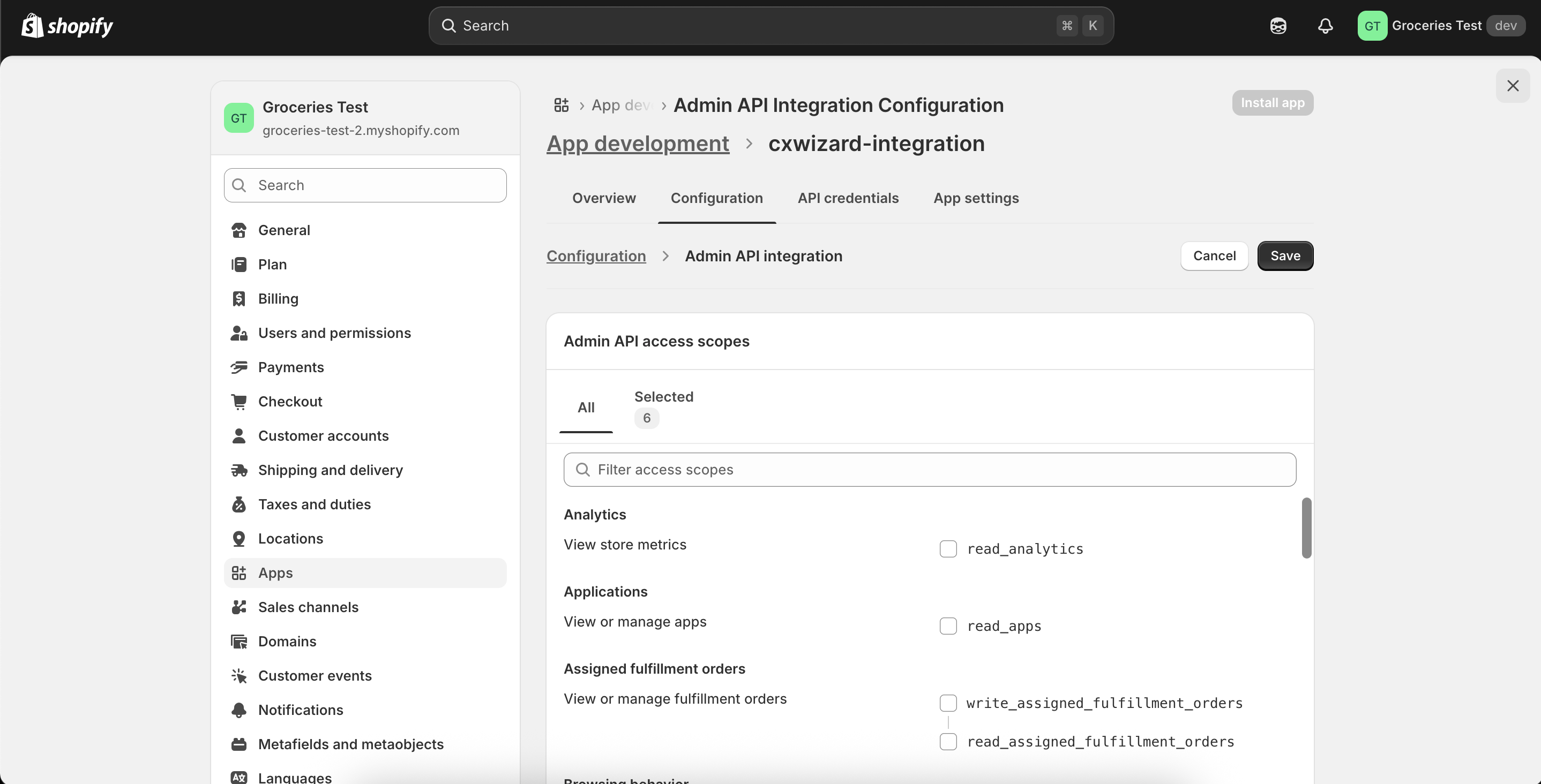
7. Select scopes and save
Use the filter/search to find and enable these read scopes:
read_ordersread_fulfillmentsread_productsread_legal_policiesread_inventoryread_locations
Then click Save.
8. Open API credentials and Install the app
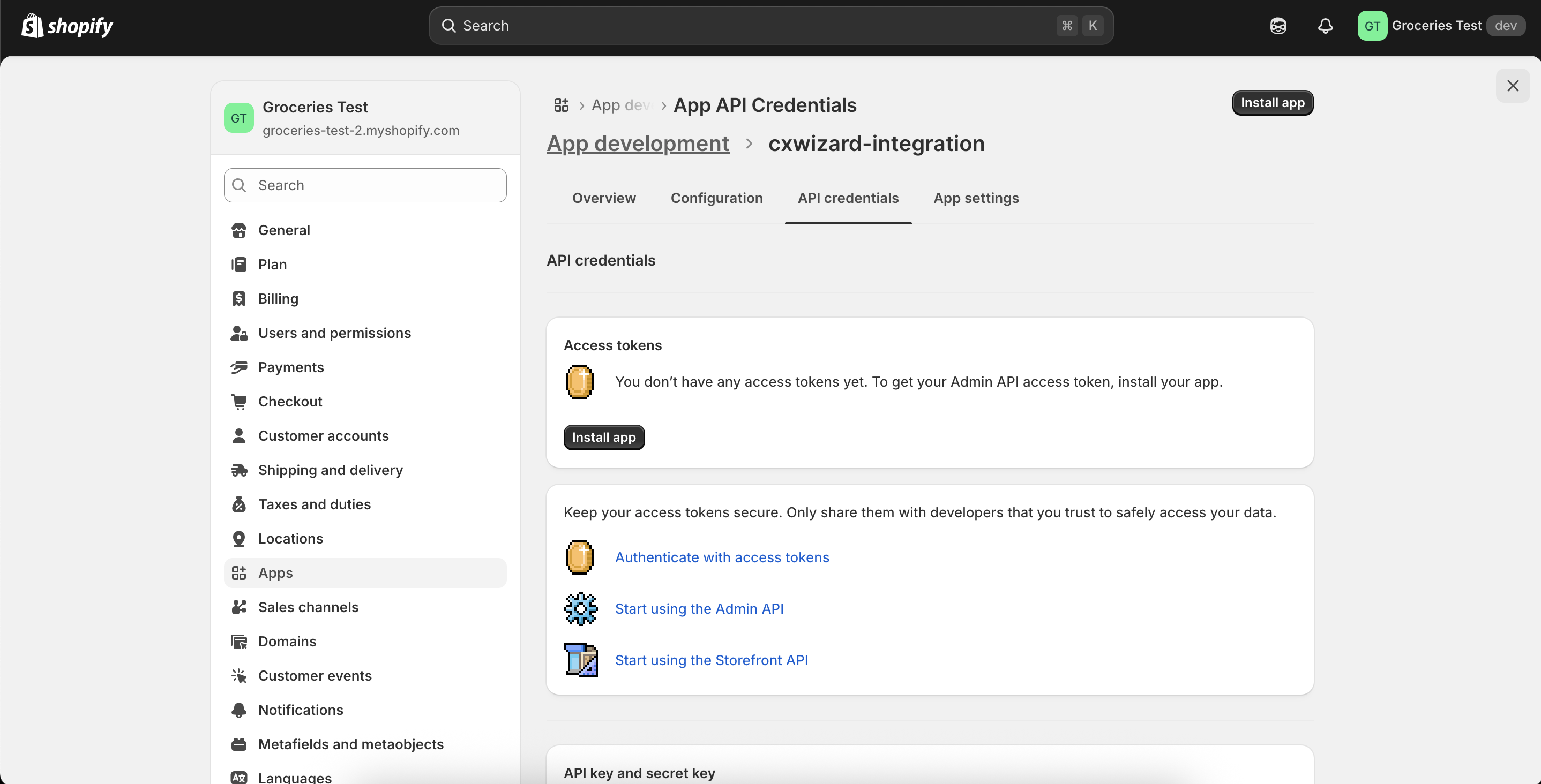
Open the API credentials tab. Click Install app so Shopify can issue an Admin API access token.
9. Reveal the token and connect CXWizard
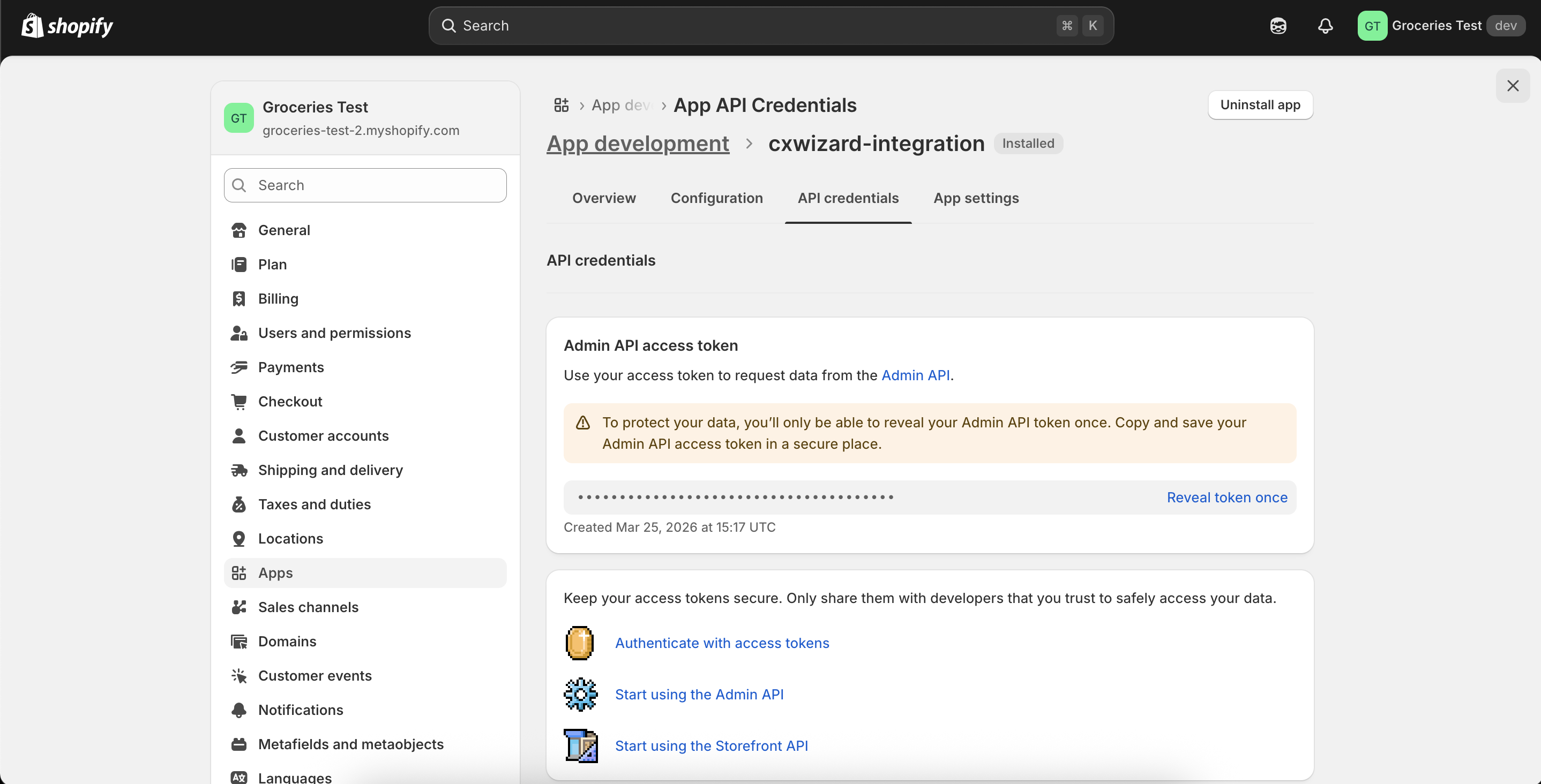
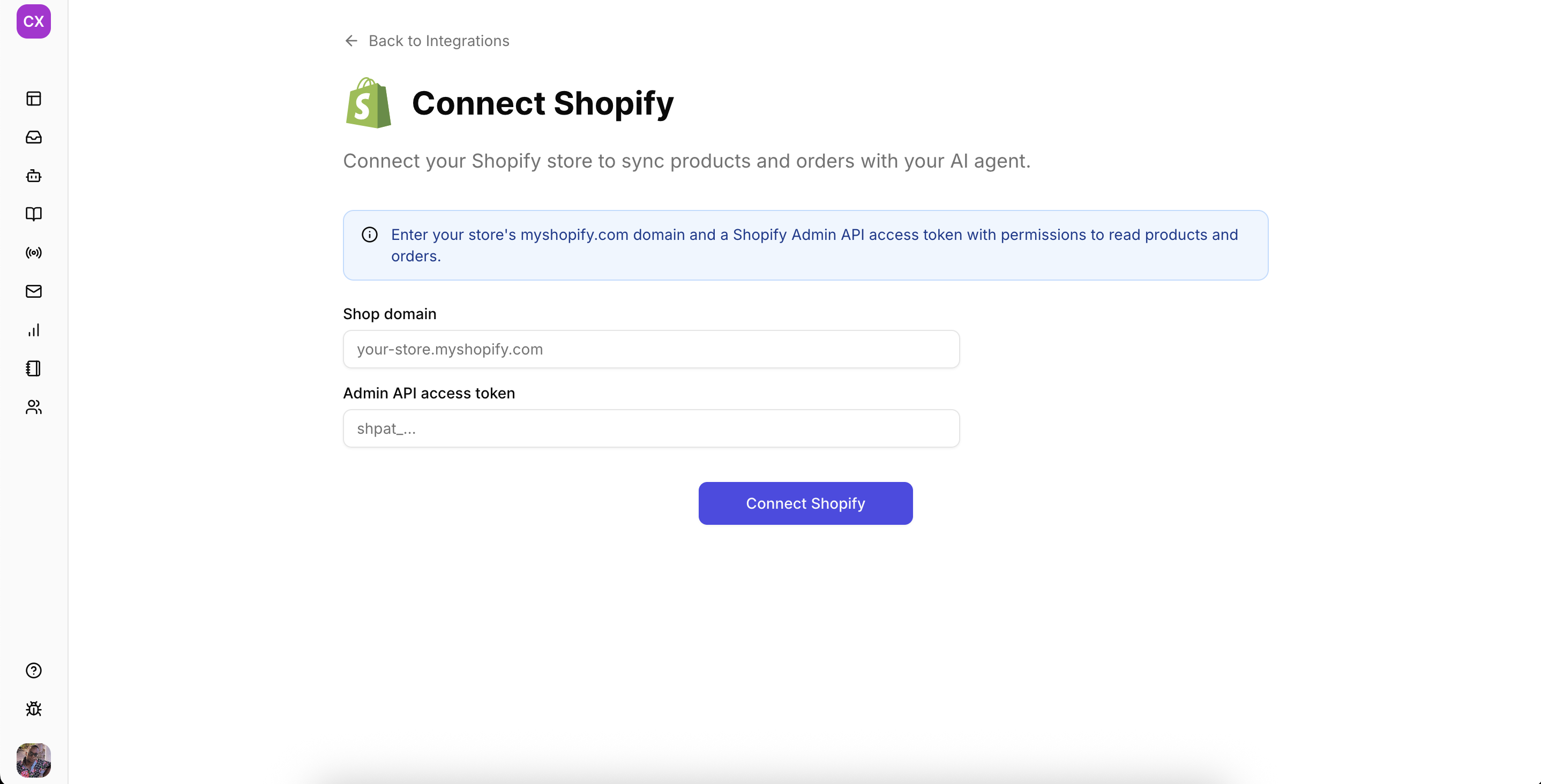
Click to reveal the Admin API access token, copy it, then in CXWizard go to your Shopify integration page.
Paste the access token and enter your Shopify store domain (often your *.myshopify.com hostname).
Security tip: Treat the Admin API access token like a password. Do not share it in chat or email, and revoke or rotate it in Shopify if it is ever exposed.
Related Posts
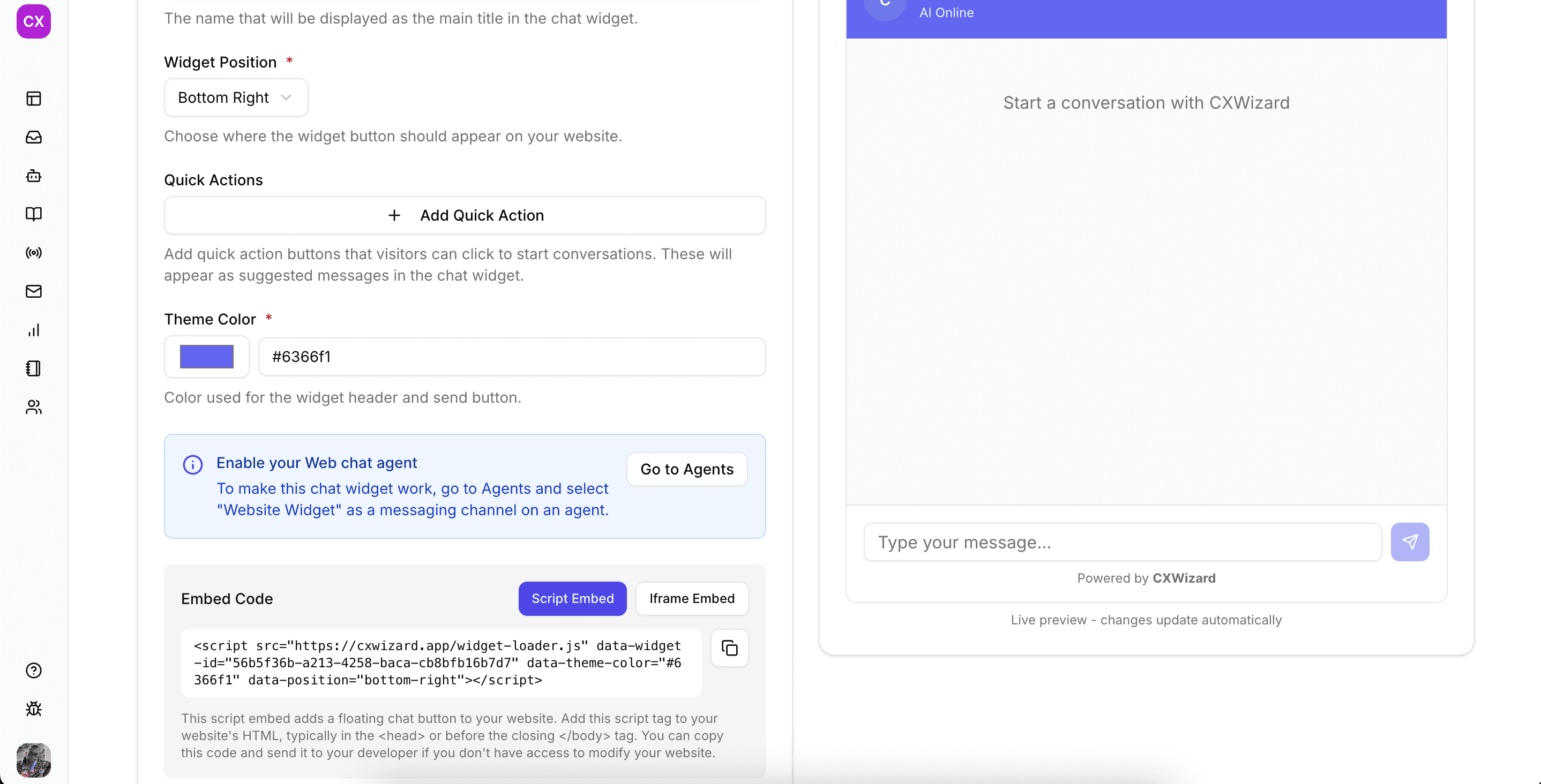
How to Add CXWizard Chat Widget to Your Shopify Store
Learn how to create the CXWizard website chat widget and add it to Shopify themes using the provided embed code.
WhatsApp Automation Best Practices
Master WhatsApp automation with these proven strategies and best practices to maximize customer satisfaction and business results.

12 SleekFlow Alternatives: Compare Pricing, Features & Reviews
Compare alternatives to SleekFlow in terms of pricing, features, and reviews from forums. Discover why CXWizard is the multi-channel AI and unified inbox choice for support teams.