How to Add CXWizard Chat Widget to Your Shopify Store
Learn how to create the CXWizard website chat widget and add it to Shopify themes using the provided embed code.
How to Add CXWizard Chat Widget to Your Shopify Store
This guide shows you how to create CXWizard’s chat widget, copy the embed code, and paste it into your Shopify theme so customers can chat with your AI agent.
Part 1: Create the chat widget in CXWizard
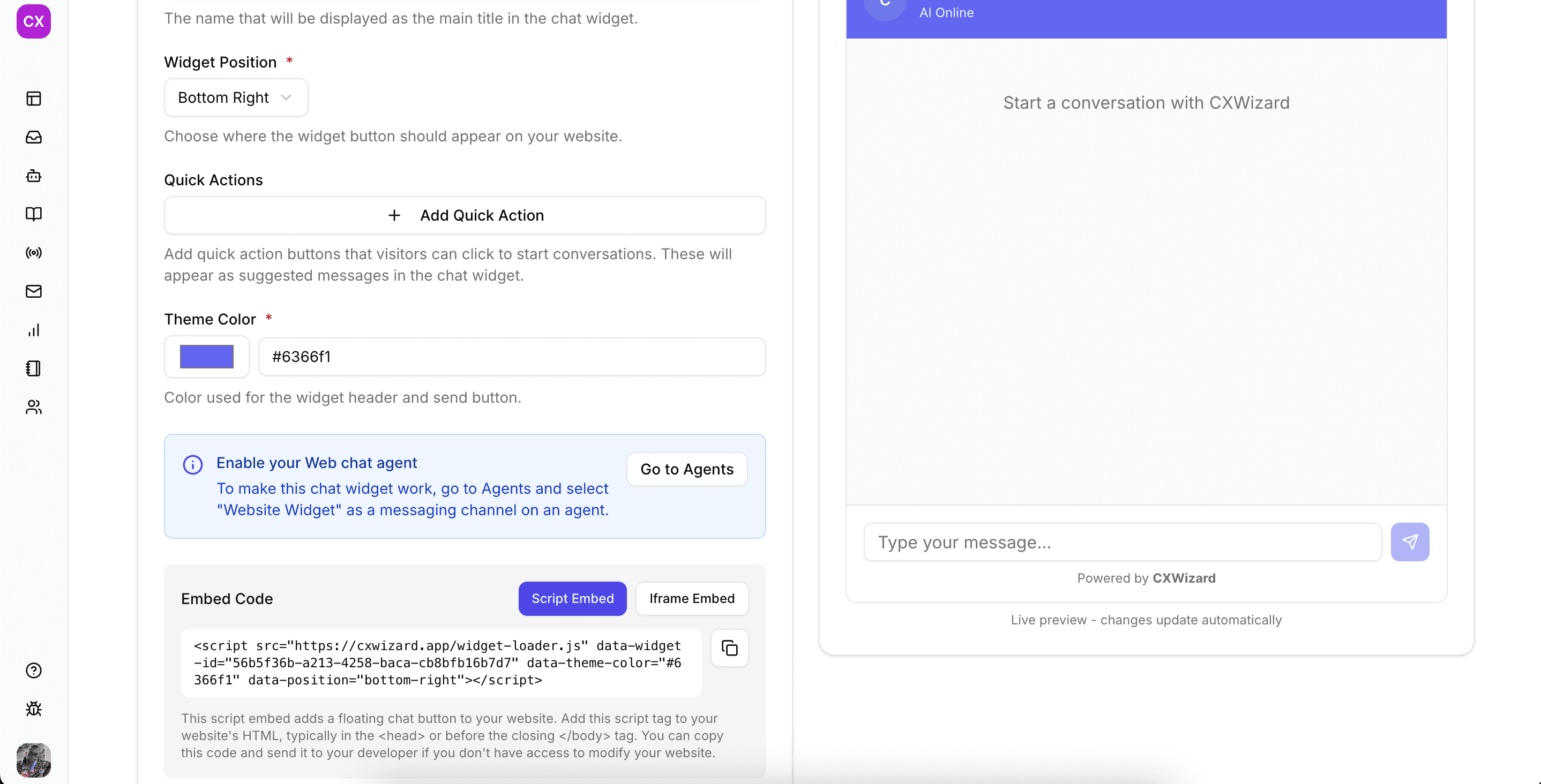
- From your CXWizard dashboard, go to Integrations → Website Widget.
- Or open this link directly: https://cxwizard.app/dashboard/integrations/website-widget
- Customize your widget:
- Give it a name
- Specify the widget position
- Add quick action buttons (optional, but recommended)
- Choose the theme color
- Click Save
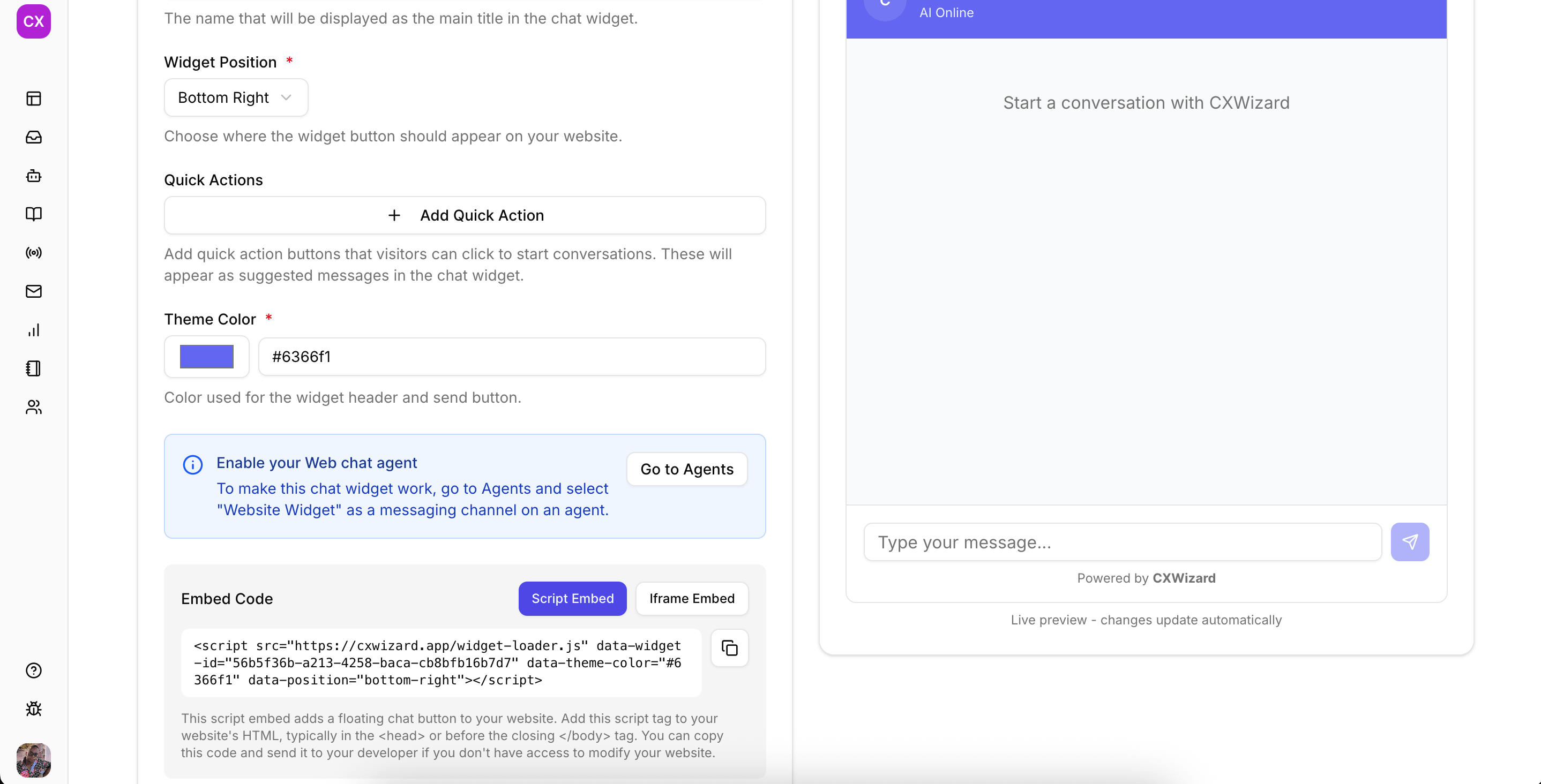
After saving, you will see the embed code. Copy it (you’ll paste this into Shopify in Part 2).
Part 2: Add the widget to your Shopify store
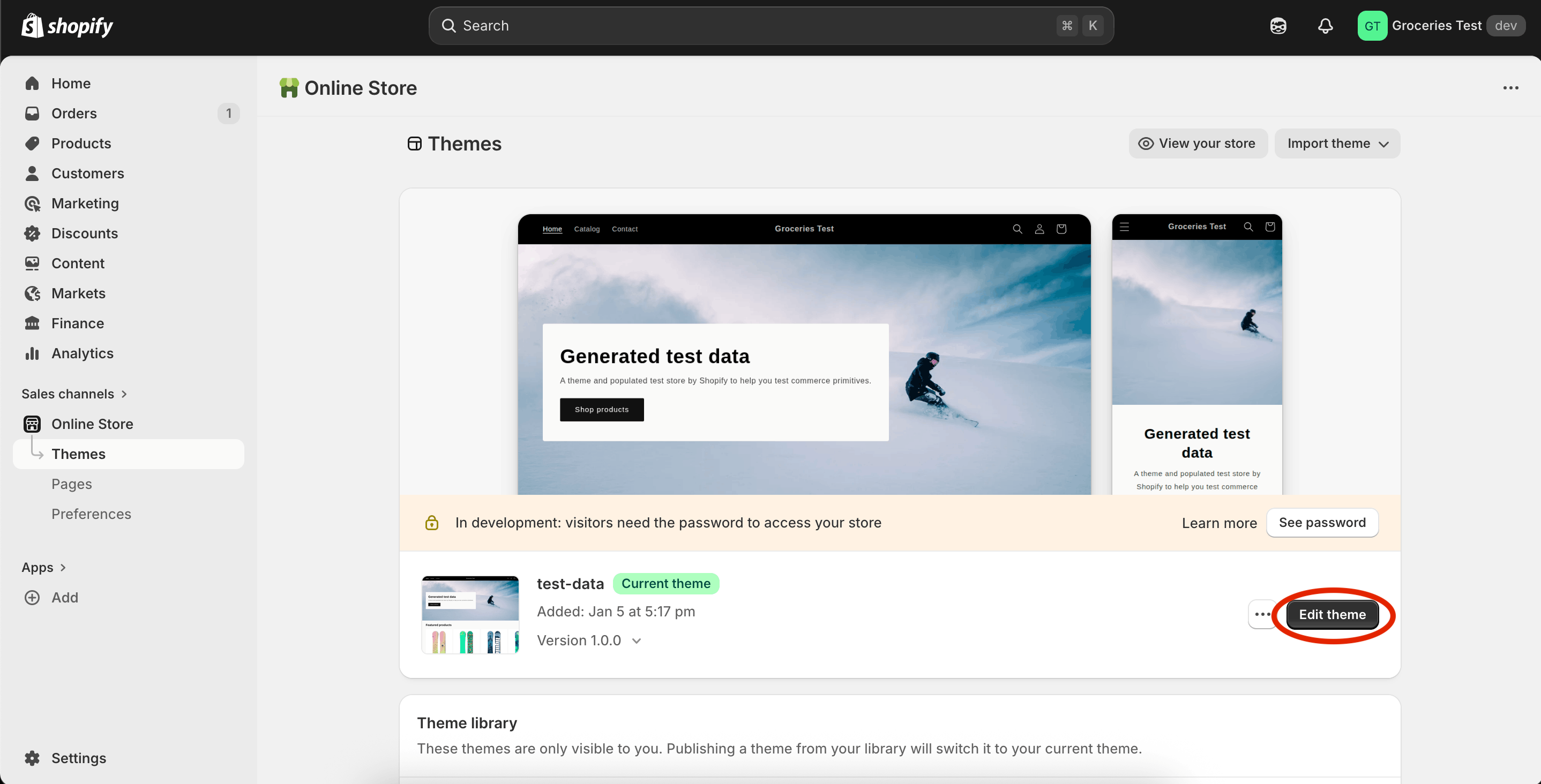
- In your Shopify Admin sidebar, click Online Store → Themes.
- Click Edit theme.
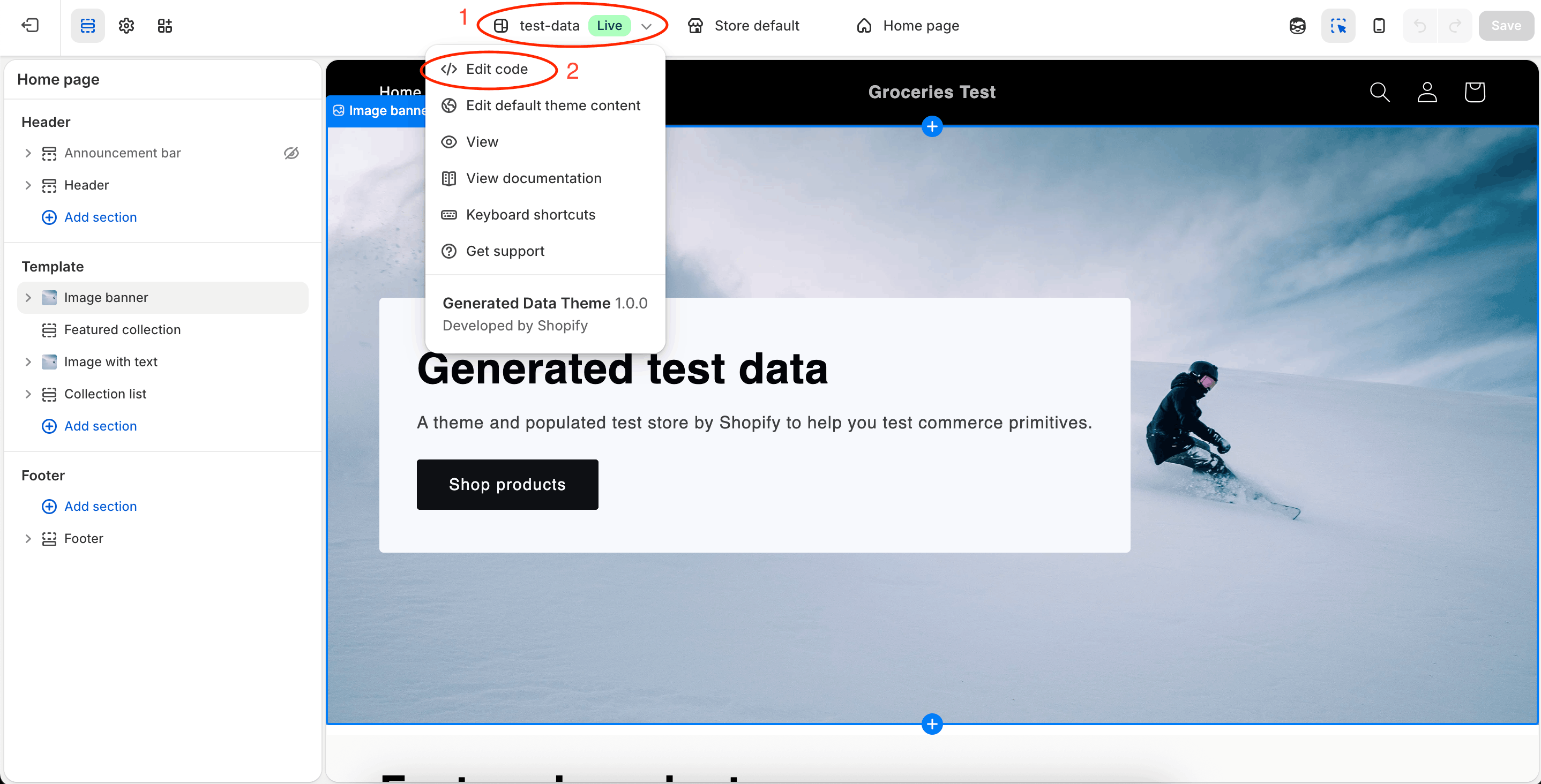
- Click the dropdown with your store name (as shown in image), then choose Edit code.
- In the left file explorer:
- Expand the
layoutfolder - Click
theme.liquidfile (or use the editor search bar to find it)
- Expand the
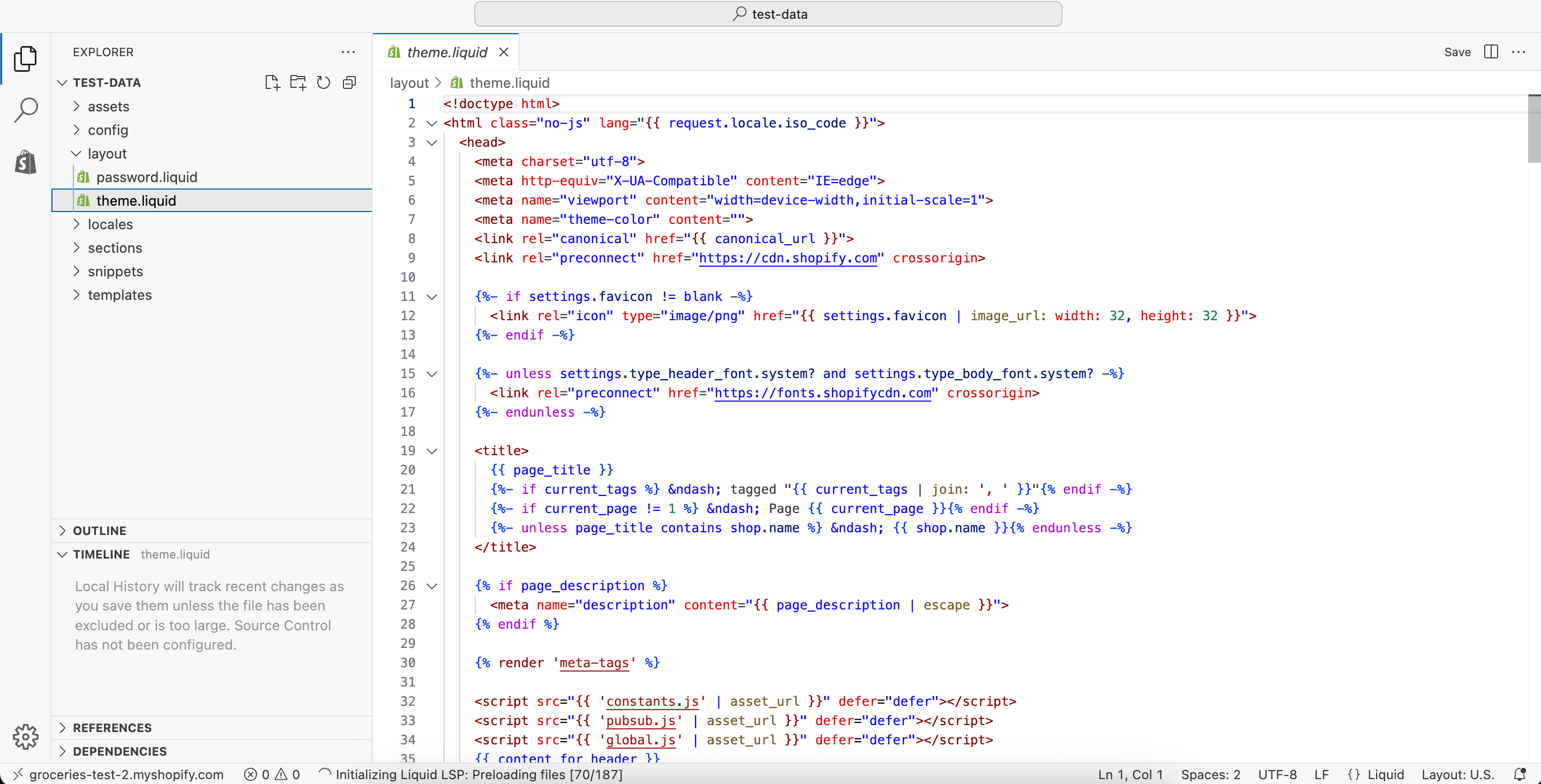
- Scroll to the end of the file.
- Paste the CXWizard chat widget embed code just before the closing
</body>tag. - Click Save (top-right) or press
Ctrl + S(Command + Son Mac).
- Paste the CXWizard chat widget embed code just before the closing
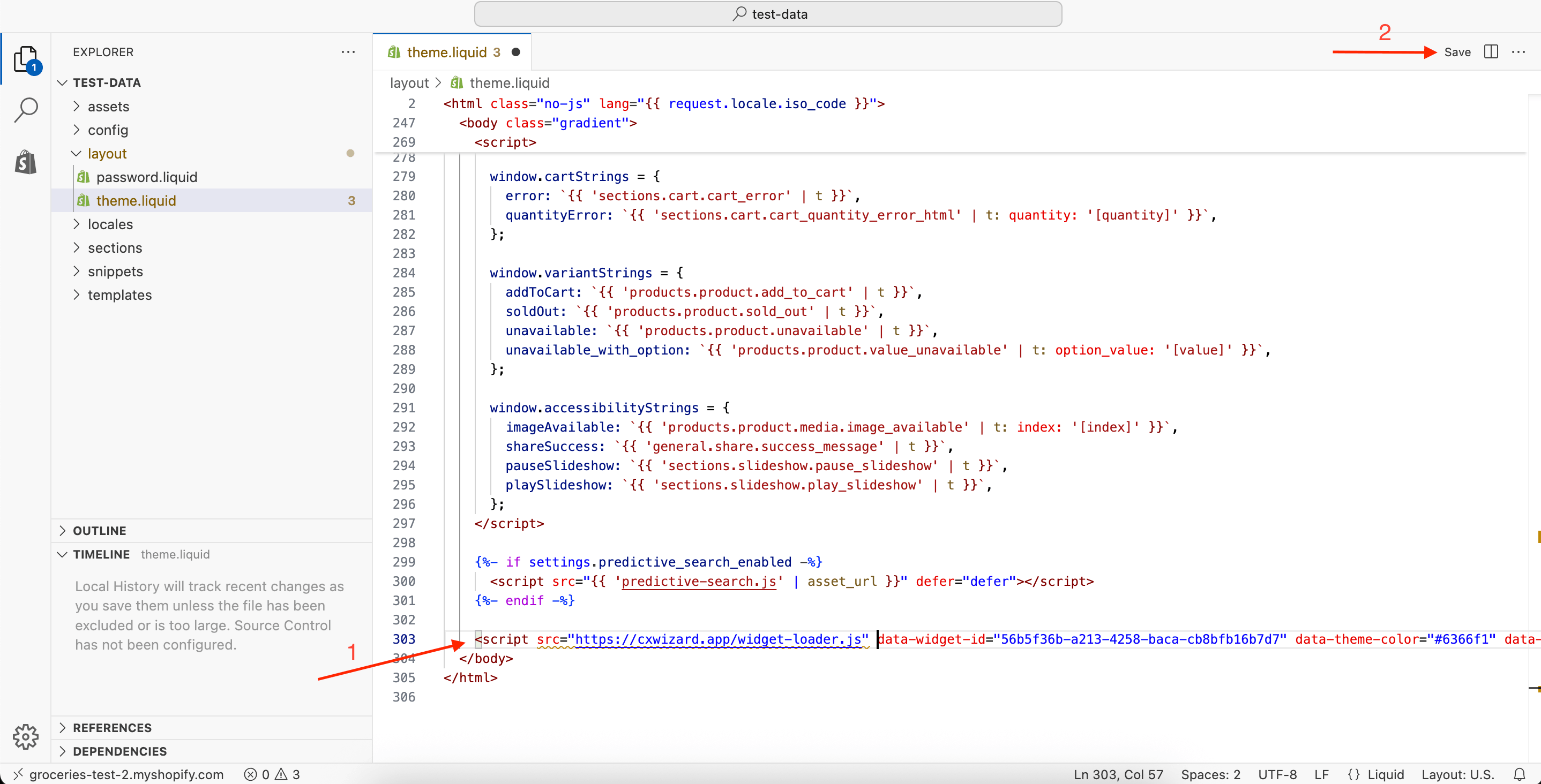
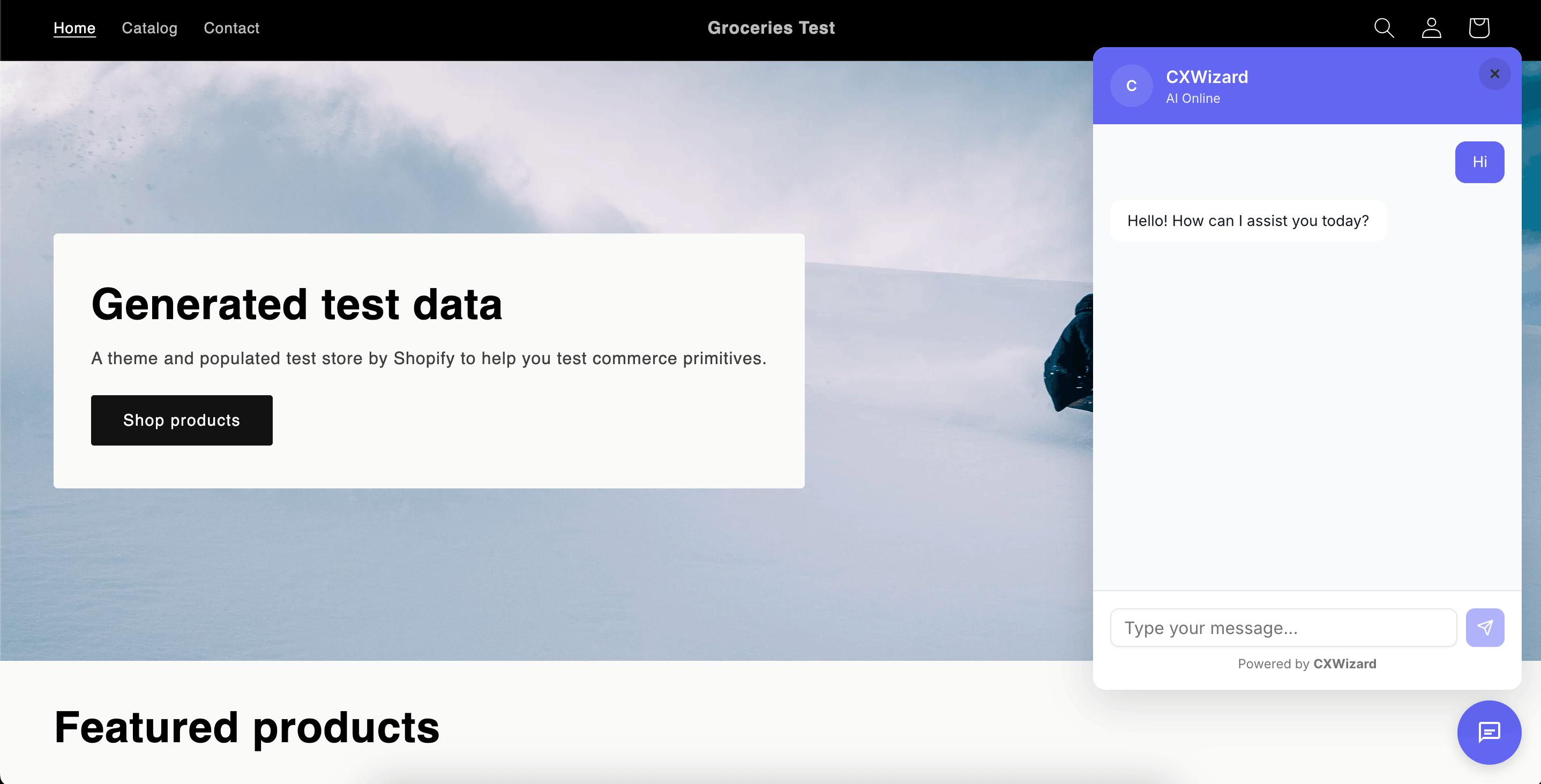
- Close the editor tab, then visit your Shopify storefront to verify the chat widget loads.
Enable the AI for the widget
To enable the AI for your chat widget, you will have to create an agent and select “Website widget” as a messaging channel.
Visit this article to learn how you can connect your Shopify store data so that your AI agent can recommend products and help with order queries (https://cxwizard.app/blog/how-to-connect-shopify-store-to-cxwizard)
Related Posts
How to Connect Your Shopify Store to CXWizard
Step-by-step guide to create a Shopify legacy custom app, configure Admin API scopes, install it, and paste your credentials into CXWizard’s Shopify integration.

WhatsApp Automation Best Practices
Master WhatsApp automation with these proven strategies and best practices to maximize customer satisfaction and business results.

12 SleekFlow Alternatives: Compare Pricing, Features & Reviews
Compare alternatives to SleekFlow in terms of pricing, features, and reviews from forums. Discover why CXWizard is the multi-channel AI and unified inbox choice for support teams.